
mcp server
chrome-mcp
MCP to give AI Agent(s) secure access to Chrome
Set up
Runs on your computer. Pick your agent and operating system.
This project does not publish an install method we can turn into a config. Follow the README instead.
README
synced Oct 14, 2026[!WARNING] Ensure port 9223 is blocked from external traffic. execute_script allows execution of arbitrary JS code.
Chrome MCP Controller
A MCP (Model Context Protocol) server that allows AI agents (like godex) to control Chrome tabs via a browser extension.
Installation
Quick Install (Linux/macOS)
curl -sSL https://raw.githubusercontent.com/cheikh2shift/chrome-mcp/main/install.sh | sh
Or install a specific version:
curl -sSL https://raw.githubusercontent.com/cheikh2shift/chrome-mcp/main/install.sh | sh -s v0.0.1
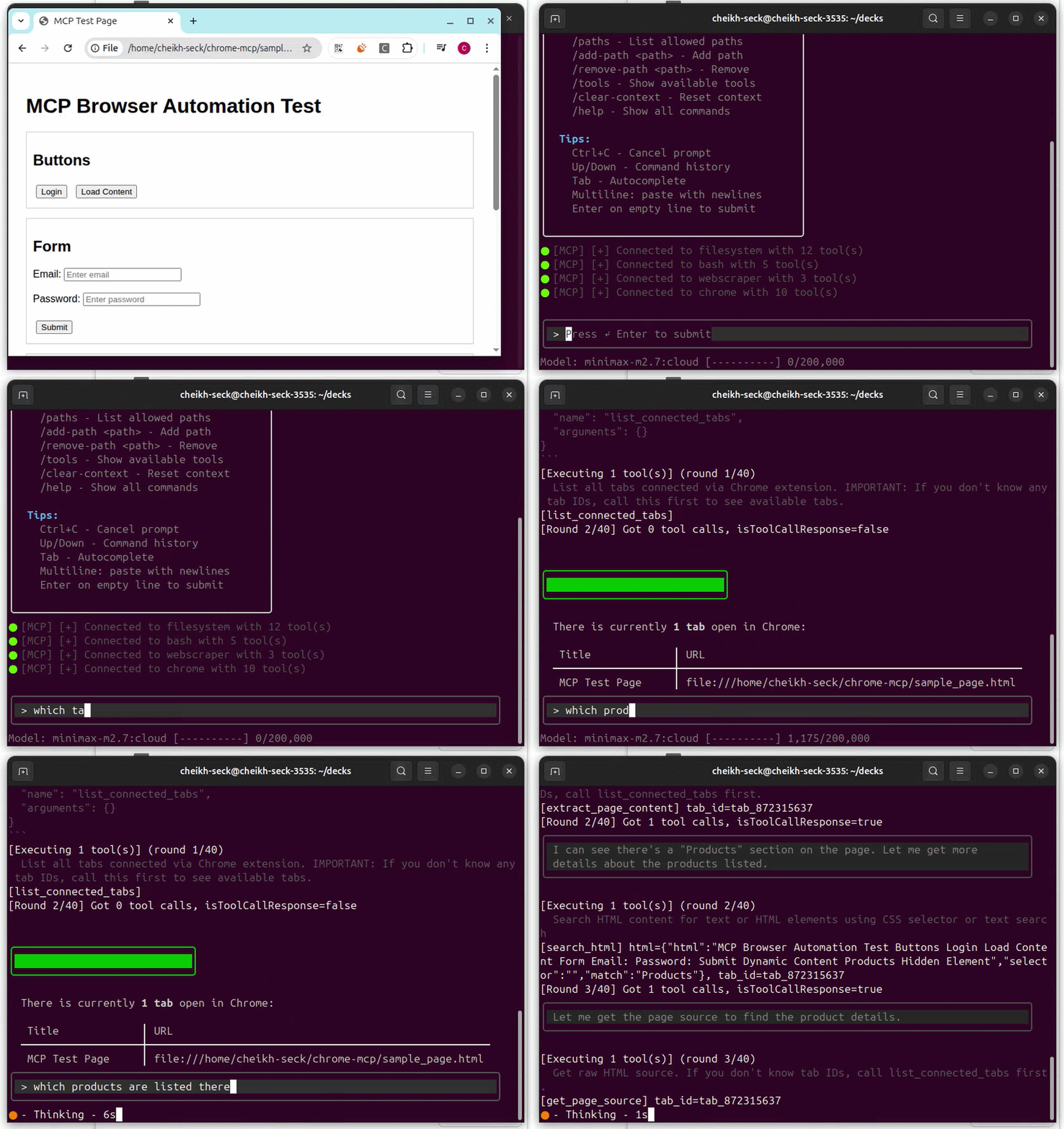
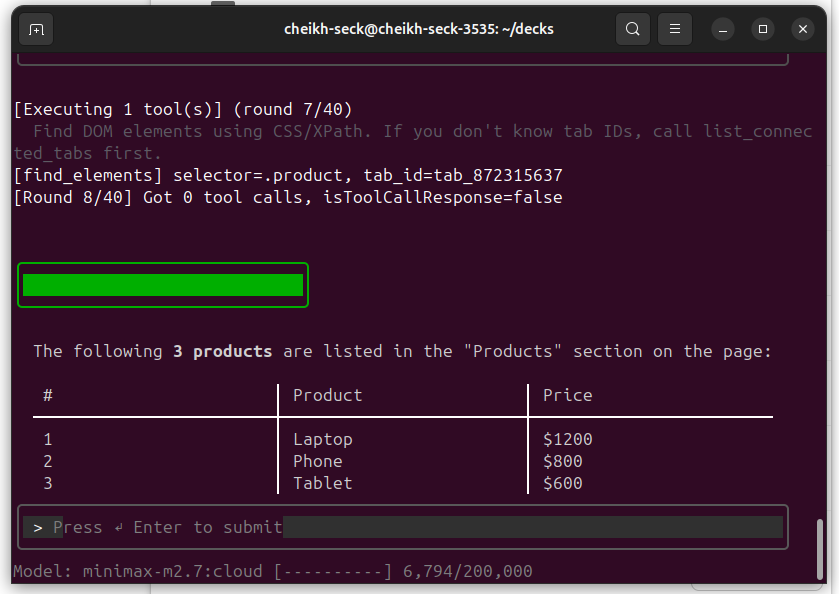
Architecture
┌─────────────────────────────────────────────────────────────────────────────────┐
│                          MCP Mode (for godex)                                   │
│  ┌─────────────┐    stdio     ┌──────────────┐         ┌──────────────────────┐ │
│  │   godex     │◄────────────►│  chrome-mcp  │◄──WS─-─►│    Daemon Server     │ │
│  │  (AI Agent) │              │              │  /ws/mcp│    (port 9223)       │ │
│  └─────────────┘              └──────────────┘         └──────────┬───────────┘ │
└────────────────────────────────────────────────────────────┬──────┴─────────────┘

┌───────────────────────────────────────────────────────────────────────────────┐
│                        Chrome Extension                                       │
│  ┌─────────────────────┐         WebSocket         ┌────────────────────────┐ │
│  │   background.js     │◄──────────────────────────│    Daemon Server       │ │
│  │   (service worker)  │   /ws/extension push      │    (port 9223)         │ │
│  └──────────┬──────────┘                           └───────────┬────────────┘ │
│             │ chrome.tabs.sendMessage                          │              │
│             ▼                                                  │              │
│  ┌─────────────────────┐                                       │              │
│  │     content.js      │◄──────────────────────────────────────┘              │
│  │  (page context)     │  DOM operations via content script                   │
│  └─────────────────────┘                                                      │
│             │                                                                 │
│             │ chrome.debugger.sendCommand (DevTools Protocol)                 │
│             ▼                                                                 │
│  ┌─────────────────────┐                                                      │
│  │    execute_script   │  JS execution via DevTools Protocol                  │
│  └─────────────────────┘                                                      │
└───────────────────────────────────────────────────────────────────────────────┘
How It Works
- godex starts chrome-mcp → Automatically starts daemon server in background
- Daemon → HTTP + WebSocket server on port 9223
- MCP → Daemon → Opens dedicated WebSocket connection (
/ws/mcp) - Extension → Daemon → Opens WebSocket connection (
/ws/extension) for push commands - Command Flow → Daemon pushes command to extension via WebSocket, extension executes and returns result directly back through the same WebSocket connection
Manual Install
# Build from source
git clone https://github.com/cheikh2shift/chrome-mcp.git
cd chrome-mcp
go build -o chrome-mcp ./cmd/chrome-mcp
sudo mv chrome-mcp /usr/local/bin/
Chrome Extension
- Open Chrome and navigate to
chrome://extensions/ - Enable "Developer mode" (toggle in top right)
- Click "Load unpacked"
- Select the
extension/folder from this repository
Usage
Start Daemon (Automatic)
When chrome-mcp runs in MCP mode (for godex), it automatically starts the daemon:
chrome-mcp --port 9223  # MCP mode, auto-starts daemon
chrome-mcp --server     # Run only HTTP server (no MCP)
chrome-mcp --kill       # Kill the daemon
Chrome Extension
- Click the Chrome MCP Controller extension icon
- Navigate to tabs you want to control
- Click "Connect" on each tab you want to control
- Extension connects via WebSocket for instant command delivery
Use with godex
Add to your ~/.godex/providers.yaml:
providers:
  - name: ollama
    type: ollama
    endpoint: http://localhost:11434
    model: minimax-m2.7:cloud
    description: Ollama with Chrome MCP
    mcp_servers:
      - name: chrome
        command: "/usr/local/bin/chrome-mcp"
        transport: "stdio"
        start: true

default_provider: ollama
Integration with AI Assistants
[!IMPORTANT] Before configuring any AI assistant, ensure chrome-mcp is installed on your system:
# Quick install
curl -sSL https://raw.githubusercontent.com/cheikh2shift/chrome-mcp/main/install.sh | sh

# Or build from source
git clone https://github.com/cheikh2shift/chrome-mcp.git
cd chrome-mcp
go build -o chrome-mcp ./cmd/chrome-mcp
sudo mv chrome-mcp /usr/local/bin/
Claude Desktop (Claude Code)
Add chrome-mcp to your Claude Desktop configuration at ~/.config/Claude/claude_desktop_config.json:
{
  "mcpServers": {
    "chrome": {
      "command": "chrome-mcp",
      "args": ["--debug"]
    }
  }
}
Then restart Claude Desktop. The Chrome MCP tools will be available in your conversations.
Codex
Add chrome-mcp using the Codex CLI:
codex mcp add chrome -- chrome-mcp --debug
Or add the following to ~/.codex/config.toml
[mcp_servers.chrome]
command = "./chrome-mcp"
args = ["--debug"]
Then restart Codex. The Chrome MCP tools will be available in your sessions.
Zed
Add chrome-mcp to your Zed settings.json:
{
  "context_servers": {
    "chrome": {
      "command": {
        "path": "chrome-mcp"
      }
    }
  }
}
Then restart Zed. The Chrome MCP tools will be available in your sessions.
Verify Installation
To verify chrome-mcp is working correctly with your AI assistant:
# Run the test script
./test.sh

# Or manually test
npx @modelcontextprotocol/inspector --cli --method "tools/list" chrome-mcp
This opens the MCP Inspector where you can test the available tools.
Available Tools
| Tool | Description |
|---|---|
list_connected_tabs | List all tabs connected to the MCP server |
get_tab_info | Get detailed information about a specific tab |
get_page_structure | Get structured DOM overview (efficient for LLM context) |
extract_page_content | Extract readable text, links, forms, images |
get_page_source | Get raw HTML source (use sparingly) |
find_elements | Find DOM elements using CSS/XPath selectors |
execute_script | Execute JavaScript in the target tab |
get_element_details | Get detailed element info (styles, bounding rect) |
wait_for_element | Wait for element to appear |
Example Usage
# List connected tabs
list_connected_tabs

# Get page structure
get_page_structure tab_id="tab_123456" max_depth=3

# Extract content from specific element
extract_page_content tab_id="tab_123456" selector="main"

# Execute JavaScript
execute_script tab_id="tab_123456" script="return document.title"

# Find elements
find_elements tab_id="tab_123456" selector="button.submit"

# Get element details
get_element_details tab_id="tab_123456" selector="#search-input"

# Wait for element
wait_for_element tab_id="tab_123456" selector=".loading" timeout_ms=5000

# Take screenshot
take_screenshot tab_id="tab_123456"
Efficient Page Parsing
For long HTML pages, use these strategies:
- Use
get_page_structurewith lowmax_depth(3-5) to understand layout - Use
extract_page_contentto get readable text without HTML noise - Use
find_elementswith specific selectors to locate elements - Use
get_element_detailsfor targeted element information
This approach prevents overwhelming the LLM context with raw HTML.
JS Execution
JavaScript runs via the Chrome DevTools Protocol (not content script). Example scripts:
// Click an element
document.querySelector('#submit-btn').click();

// Fill a form
document.querySelector('#email').value = 'test@example.com';

// Extract data
return Array.from(document.querySelectorAll('.item')).map(el => el.innerText);

// Interact with React/Vue
const input = document.querySelector('input[data-testid="search"]');
input.value = 'query';
input.dispatchEvent(new Event('input', { bubbles: true }));
Configuration
Command line options:
--port 9223- HTTP/WebSocket server port (default: 9223)--debug- Enable debug logging--kill- Kill the background daemon--server- Run only HTTP server (no MCP mode)
License
MIT