
Set up
Skills are installed by placing their folder where your agent loads skills.
The download comes from github.com/TJ-Junhao/umber itself, not from our server, so what you get is exactly what its author published.
Install instructions come from the README
README
synced Oct 26, 2026umber

umber is a plotting library for Python with a rendering core written in Rust. It draws line, step, scatter, area, stacked area, bar, histogram, ECDF, KDE, box, violin, strip, swarm, event, bubble, error bar, band, stem, reference-line, heatmap, mesh, contour, 2-D histogram, hexbin and pie charts on numeric, log, category and time axes, alone or on a grid of panels with shared axes, with a second y axis where needed. It has text and arrow annotations, colormaps and colorbars, careful typography with bundled or your own fonts, three built-in themes, and PNG, SVG or PDF output.
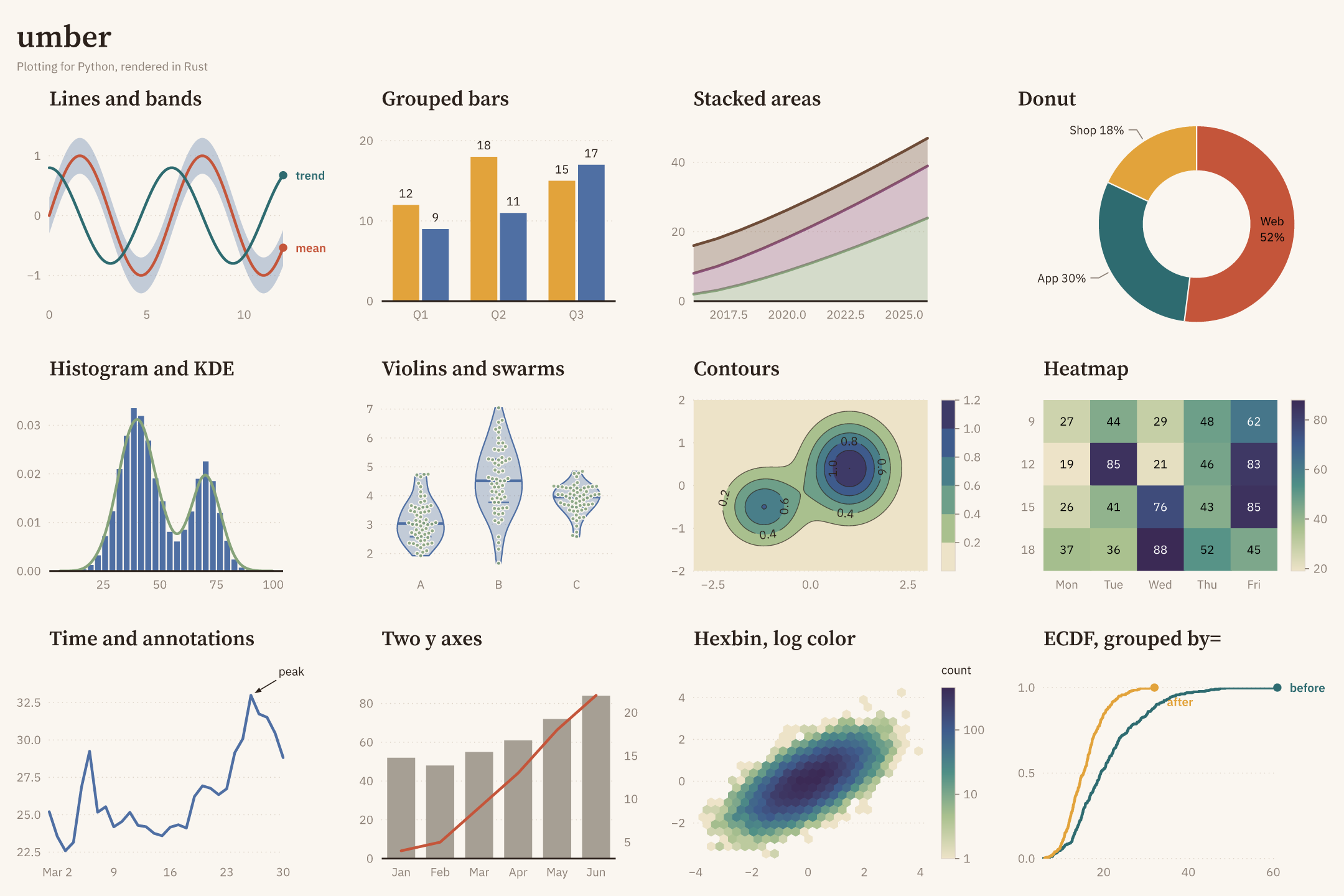
- Fast on large data. Rendering runs in Rust: a 1,000,000-point line renders to PNG in about 77 ms and to PDF in about 36 ms on a standard GitHub Actions runner, 2.7× and 4.5× faster than matplotlib (see Performance).
- Explicit. Every option is a typed value (
Color,Size,Dash,TickFormat, …). There are no format strings, no positional style arguments and no silent conversions. - Fails fast, pointing at the problem. Invalid input raises at the call that caused it, with a message, a hint and the offending argument highlighted in the traceback.
- Statically typed. Category and numeric axes are distinct types: calling
baron a numeric axes is reported by pyright and mypy before the code runs. - Fonts that travel. Text in the bundled fonts' coverage looks the same on every machine, and PDF output embeds the fonts it uses. Font files and installed families can be used too.
- Ready for AI coding agents. The package ships an Agent Skill that teaches coding agents the umber API of the installed version (see Agent Skill).
Installation
pip install umber
umber requires Python 3.12 or newer and NumPy 2. Prebuilt wheels are published for Linux (x86_64 and aarch64), macOS (Apple silicon and Intel) and Windows (x64); free-threaded Python 3.14 and 3.15 or newer have wheels of their own. On other platforms pip builds from source, which needs Rust 1.88 or newer.
Quick start
import numpy as np
import umber as ub

t = np.linspace(0, 10, 1_000)
ub.line(t, np.sin(t), label="sin").title("A first chart").figure.save_png("chart.png")
The quick functions ub.line, ub.scatter, ub.bar, ub.hist and ub.pie create a figure with one axes and return the axes, so the rest of the chart is built by chaining.
Building a figure
import numpy as np
import umber as ub

rng = np.random.default_rng(7)
days = np.arange(60)
north = 20 + np.cumsum(rng.normal(0, 1, 60))
south = 18 + np.cumsum(rng.normal(0, 1, 60))

fig = ub.Figure(6, 4, theme=ub.Theme.GRAPHITE)  # width and height in inches
ax = fig.add_axes()
ax.title("Daily temperature").subtitle("Two stations, last 60 days")
ax.xlabel("Day").ylabel("°C")
ax.line(days, north, label="North")
ax.line(days, south, label="South", dash=ub.Dash.DASHED)

fig.save_png("temperature.png", dpi=200)
fig.save_svg("temperature.svg")
fig.save_pdf("temperature.pdf")
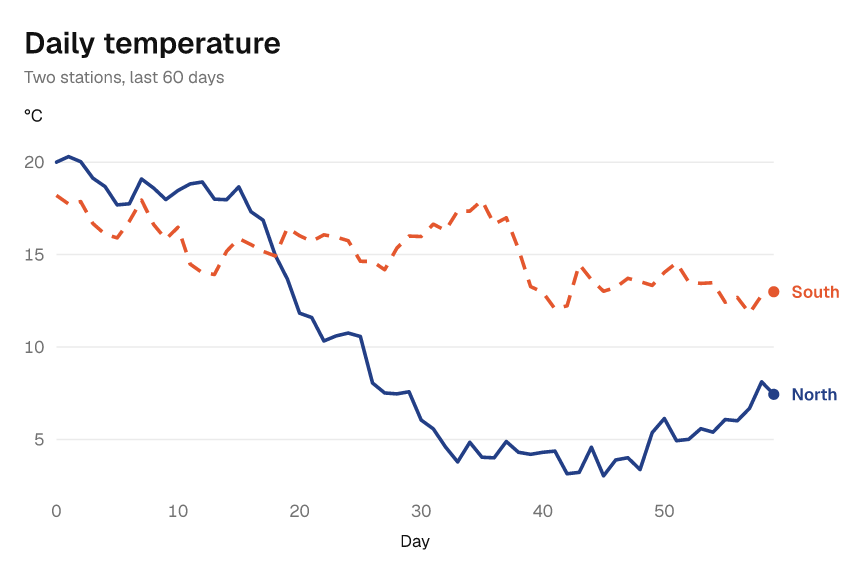
Data can be a list, a tuple, a NumPy array, or a pandas or polars Series. Missing values (NaN, or nulls in nullable pandas and polars columns) leave a gap.
| Chart | Method |
|---|---|
| Line | ax.line(x, y) |
| Scatter | ax.scatter(x, y, marker=ub.Marker.TRIANGLE, size=ub.Size.times(1.5)) |
| Area | ax.area(x, y) |
| Bar, grouped, stacked | ax.bar(categories, heights), ax.grouped_bar(categories, series), ax.stacked_bar(categories, series); annotate=True writes the values on the bars |
| Histogram | ax.hist(values, bins=30); style=ub.Hist.STEP, stat=ub.Stat.DENSITY or ub.Stat.FRACTION, cumulative=True |
| ECDF, KDE | ax.ecdf(values), ax.kde(values) |
| Step | ax.step(x, y, where=ub.Step.MID) |
| Stacked area | ax.stacked_area(x, [ub.Series("A", a), ub.Series("B", b)]) |
| Box, grouped | ax.box(categories, groups), ax.grouped_box(categories, [ub.Distribution("A", groups)]) |
| Violin, grouped | ax.violin(categories, groups), ax.grouped_violin(categories, distributions) |
| Strip, swarm | ax.strip(categories, groups), ax.swarm(categories, groups) |
| Events | ax.events(rows, positions) |
| Bubbles | ax.bubbles(x, y, sizes, label="Cities") (adds a size legend) |
| Error bars | ax.y_error_bars(x, low, high), ax.x_error_bars(y, low, high) |
| Band | ax.band(x, low, high) |
| Stem | ax.stem(x, y) |
| Reference lines and spans | ax.hline(y), ax.vline(x), ax.hspan(low, high), ax.vspan(low, high) |
| Heatmap | ax.heatmap(x_categories, y_categories, values, annotate=True) |
| Mesh | ax.mesh(x_edges, y_edges, values) |
| Contour | ax.contour(x, y, z, style=ub.Contour.FILLED); Contour.LINES (default) or Contour.BOTH |
| 2-D histogram, hexbin | ax.hist2d(x, y, bins=40), ax.hexbin(x, y, gridsize=30) |
| Color-mapped points | ax.scatter(x, y, color=ub.ColorBy(values)) |
| Pie, donut | ub.pie(categories, values, hole=0.5, annotate=True) or fig.add_pie_axes().pie(...) |
| Text, annotations | ax.text("Note", (x, y)), ax.annotate("Peak", (x, y), offset=(24, 12)) |
Bar, box, violin, strip and swarm charts need a category axis. On a category x axis, fig.add_axes(x=ub.Scale.category()), they are vertical; on a category y axis, fig.add_axes(y=ub.Scale.category()), they are horizontal, and a scatter of values against categories is a dot plot. Events are drawn in rows on a category y axis. A heatmap needs category axes on both sides. Automatic category labels start at 0 and use the smallest step in 1, 2, 5, 10, 20, 50, ... that keeps neighbouring labels apart by the same minimum gap as numeric ticks; shared axes show the same labels. Category 0 is always labelled, so a first label wider than the available room still causes a tick-label error. Log axes use ub.Scale.log() and time axes ub.Scale.time(). Limits, ticks and tick label formats are set with xlim, ylim, xticks, xticks_labeled, ytick_format(ub.TickFormat.percent()) and their counterparts on the other axis.
Bars, histograms, areas and stems draw a baseline at zero (or at the lower edge when zero is out of range); other charts draw none. Override this for each axes with ax.baseline(shown=True) or ax.baseline(shown=False); ax.baseline(shown=ub.AUTO) restores the default.
Automatic limits contain whole bubble markers, outlines included; explicit limits clip them. Legend swatches show each mark's fill as drawn over the plot background.
Long-form data
Data in long form, one row per observation with a column naming its group, is drawn with by=. line, step, scatter, area, ecdf, kde, hist and bar take it: each group becomes one series, named after the group and colored in the order the groups first appear.
import pandas as pd
import umber as ub

df = pd.DataFrame(
    {
        "day": [1, 2, 3, 1, 2, 3],
        "temp": [12.0, 14.5, 13.0, 9.0, 10.5, 11.0],
        "station": ["North", "North", "North", "South", "South", "South"],
    }
)
ax = ub.Figure().add_axes()
ax.line(df["day"], df["temp"], by=df["station"])
Columns are passed as data, not as column names, and work the same from pandas, polars, NumPy or lists; umber does not read a column's name. With by=, every group takes its own label and color, so label= and color= are refused. Histograms need style=ub.Hist.STEP or style=ub.Hist.STACKED, and bar(categories, heights, by=groups) draws grouped bars.
Grids and shared axes
Figure(rows=2, cols=2) declares a grid. Its default width=ub.AUTO and height=ub.AUTO give each column 6 inches and each row 4 inches; an explicit size is for the whole figure. Add panels by their zero-based top-left cell:
import copy
import umber as ub

fig = ub.Figure(rows=2, cols=2, share_x=ub.Share.COL, legend=ub.Legend.MERGED)
fig.title("Station signals").subtitle("Shared time scales")
fig.add_axes(row=0, col=0).line([0, 1, 2], [1, 3, 2], label="North")
fig.add_axes(row=1, col=0).line([0, 1, 2], [2, 1, 3], label="South")
fig.add_axes(row=0, col=1, row_span=2).line([0, 1, 2], [1, 3, 2], label="North")
fig.save_png("subplots.png")

variant = copy.copy(fig)
variant.axes_at(row=0, col=1).title("Comparison")  # the original is unchanged
Share.NONE, Share.ROW, Share.COL and Share.ALL choose which panels share a scale, limits, ticks and tick format. Legend.PER_PANEL keeps a separate legend for each panel instead of the default merged legend. Empty cells remain empty; overlapping panels are refused.
Use fig.axes_at(row=..., col=..., x=..., y=...) to retrieve axes, including those in a copy. The scale kinds and log bases must match creation; for category axes, pass x=ub.Scale.category() to get Axes[str, float]. A spanning panel is found only at its top-left cell. A row or column can be omitted only when that dimension has size 1. Figure.axes has been removed in favor of this typed method.
fig.cells() yields immutable Cell positions in row-major order, occupied or not; fig.cells(n) yields the first n. For example, for cell, values in zip(fig.cells(), datasets): cell.add_axes().line(x, values) adds one panel per dataset. AUTO is a typed sentinel, not None, and only parameters that declare it accept it.
Colors and colorbars
Heatmaps, meshes, contours, 2-D histograms and hexbins color each cell, band or line by its value, and color=ub.ColorBy(values) does the same for the points of a scatter or bubble chart. The color-mapped marks of one axes share a single color scale, and a colorbar beside the plot explains it. From 10,000 cells, heatmaps, meshes and 2-D histograms draw their cells as one image with one pixel per cell instead of one shape per cell, which keeps large grids small and fast; render=ub.Render.VECTOR or render=ub.Render.RASTER chooses the form explicitly.
import numpy as np
import umber as ub

rng = np.random.default_rng(41)
x = rng.normal(size=20_000)
y = 0.6 * x + rng.normal(scale=0.7, size=x.size)

ax = ub.Figure(theme=ub.Theme.MIDNIGHT).add_axes()
ax.hexbin(x, y, gridsize=30, scale=ub.Scale.log()).colorbar("Count")
ax.figure.save_png("density.png")
cmap= chooses the colormap: each theme has its own sequential and diverging colormaps, and Cmap.VIRIDIS, Cmap.MAGMA, Cmap.CIVIDIS and Cmap.BLUE_RED are built in. Cmap.from_colors([...]) builds one from your colors, mixed in the perceptual Oklab space, and .reversed() turns one around. scale=ub.Scale.log() maps values on a log scale, and center=0 makes the mapping diverging and symmetric about that value. The color range runs from the smallest to the largest finite value; ax.clim(low, high) sets it, and values outside it take the end colors.
ax.colorbar(label, position=..., format=...) labels the colorbar, moves it below the plot with ColorbarPosition.BOTTOM or hides it with ColorbarPosition.NONE. On a grid, Figure(share_color=ub.Share.ROW) gives the panels of each row one color range and one colorbar at the right of the row; Share.COL puts one below each column, and Share.ALL one beside the whole grid. fig.colorbar(...) sets those shared colorbars.
Contours
ax.contour(x, y, z) draws level lines of a field sampled on a grid, with z shaped (len(y), len(x)). style=ub.Contour.FILLED fills the bands between levels and Contour.BOTH draws both; levels= takes a count or the levels themselves, and annotate=True writes each level on its lines. Contours share the axes' color scale like the other color-mapped marks, and the colorbar shows the levels.
import numpy as np
import umber as ub

x = np.linspace(-3, 3, 121)
y = np.linspace(-2, 2, 81)
z = np.exp(-((x[None, :] - 1) ** 2) - (y[:, None] - 0.4) ** 2)

ax = ub.Figure(theme=ub.Theme.GRAPHITE).add_axes()
ax.contour(x, y, z, style=ub.Contour.BOTH, annotate=True).colorbar("km")
ax.figure.save_png("elevation.png")
Pie and donut charts
ub.pie(categories, values) draws a pie on its own panel; on a grid, fig.add_pie_axes(row=..., col=...) adds a pie panel. Slices start at twelve o'clock and run clockwise in input order. hole=0.55 makes a donut, annotate=True writes each share under its name, and names that do not fit inside a slice move outside with a leader line. A pie labels its slices directly; ax.legend(ub.LegendStyle.HEADER) uses a legend instead.
import umber as ub

channels = ["Search", "Direct", "Social", "Email", "Other"]
ax = ub.pie(channels, [41, 24, 17, 11, 7], hole=0.55, annotate=True).title("Visits by channel")
ax.figure.save_png("channels.png")
Time axes
ub.Scale.time() makes a time axis. It takes datetime, date and numpy.datetime64 values, NumPy datetime64 arrays of any unit, and naive pandas and polars datetime columns:
import numpy as np
import umber as ub

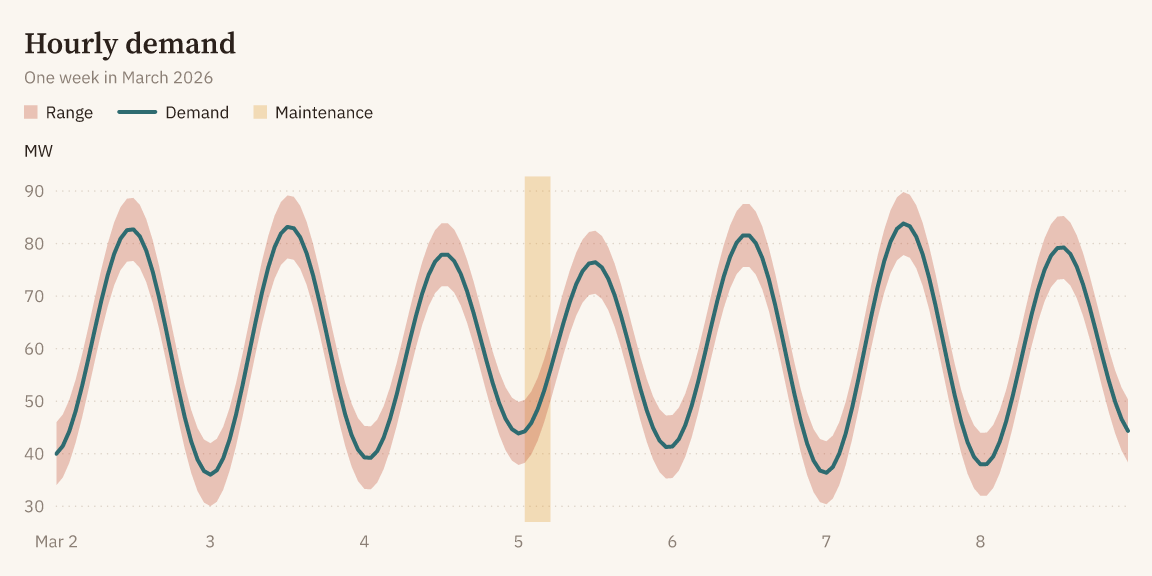
hours = np.datetime64("2026-03-02T00", "h") + np.arange(7 * 24)
demand = 60 + 20 * np.sin((np.arange(7 * 24) - 6) / 24 * 2 * np.pi)

ax = ub.Figure(8, 4).add_axes(x=ub.Scale.time())
ax.band(hours, demand - 6, demand + 6, label="Range").line(hours, demand, label="Demand")
ax.vspan(np.datetime64("2026-03-05T01"), np.datetime64("2026-03-05T05"), label="Maintenance")
ax.figure.save_png("demand.png")
Ticks fall on calendar steps, such as months, days or hours, with concise labels; xtick_format(ub.TickFormat.iso()) writes them in ISO 8601 instead. Limits, ticks, reference lines and spans on a time axis take times. Times are kept to the microsecond, NaT leaves a gap, and a time zone is refused: convert to naive times first, for example with .tz_convert(None) in pandas. Bands and stacked areas take times on the x axis only.
A second y axis
ax.twin_y() adds a numeric y axis on the right that shares the panel's x axis, and returns the axes for it. The two y axes have their own scales, limits, ticks and labels; the marks of both share one palette and one legend. fig.twin_axes_at(row=..., col=...) retrieves the right axes later.
import umber as ub

months = ["Jan", "Feb", "Mar", "Apr", "May", "Jun"]
left = ub.Figure().add_axes(x=ub.Scale.category())
left.bar(months, [52, 48, 55, 61, 72, 84], label="Rainfall").ylabel("mm")
left.twin_y().line(months, [4, 5, 9, 13, 18, 22], label="Temperature").ylabel("°C")
left.figure.save_png("weather.png")
Text and annotations
ax.text(text, (x, y)) writes text at a data position, and ax.annotate(text, (x, y), offset=(dx, dy)) writes it a distance away in points, with an arrow to the position unless arrow=False. Positions use each axis' own values: numbers, times, or category names. Text and annotations never change the axis limits. "\n" breaks them into lines: the first line sits where a single line would, and the others follow below it.
annotate=True on bar, grouped_bar and stacked_bar writes each bar's value; automatic limits grow so that every value fits, and format= chooses how values are written. With explicit limits, a value that does not fit raises StyleError naming the bar.
import numpy as np
import umber as ub

days = np.datetime64("2026-03-01") + np.arange(8)
load = [21, 22, 24, 33, 25, 23, 15, 20]

ax = ub.Figure().add_axes(x=ub.Scale.time())
ax.line(days, load).hline(30.0, dash=ub.Dash.DASHED).ylim(10, 40)
ax.annotate("Release", (days[3], 33.0), offset=(28, 14))
ax.annotate("Outage", (days[6], 15.0), offset=(22, -20))
ax.text("Target", (days[0], 32.0), color=ub.Color.GRAY)
Titles and legends
fig.title(text) and fig.subtitle(text) set text above the whole grid; ax.title(text) and ax.subtitle(text) belong to one panel. Each returns the same object for chaining, and an empty string removes the text. The figure title is 1.5 times the panel title size. "\n" breaks a title or subtitle into lines, each aligned like the title; other labels are one line, and text with a line break or another control character where it is not supported raises an error at the call. A title, subtitle or axis label wider than its room raises StyleError when the figure is rendered, with the width it needs; make the figure wider or lower the font scale.
Theme.with_title_align(ub.Align.LEFT) sets title alignment; CENTER and RIGHT are also available. Subtitles follow their title. On a multi-panel figure, the merged legend stays below the figure title and subtitle and follows their alignment, without a separate position setting. To place legends by panel, use Legend.PER_PANEL.
import umber as ub

theme = ub.Theme.PIGMENT.with_title_align(ub.Align.CENTER).with_legend_position(
    ub.LegendPosition.BOTTOM
)
fig = ub.Figure(theme=theme).title("Station signals")
ax = fig.add_axes().line([0, 1, 2], [1, 3, 2], label="North")
ax.legend(ub.LegendStyle.HEADER, position=ub.LegendPosition.RIGHT)
ax.legend(ub.LegendStyle.HEADER, position=ub.AUTO)  # back to the theme's BOTTOM
For single-panel figures and Legend.PER_PANEL, LegendPosition.TOP_LEFT (default) and TOP_RIGHT place a row below the panel title; RIGHT places a column beside the plot; BOTTOM places a row below the x axis title; BEST places the legend inside the plot where it covers the least data. Panel legend positions do not follow title alignment. Omitting position, or passing ub.AUTO, clears a previous override and uses the theme's position; it does not mean BEST. LegendStyle.DIRECT accepts only the default position=ub.AUTO, since its labels sit at line ends. LegendStyle.NONE hides the legend.
Titles, subtitles, axis labels, legends, colorbar labels, text, annotations, bar values and pie labels take size=. ub.Size.AUTO is the theme's size, ub.Size.times(1.5) scales it and follows the theme's font scale, and ub.Size.pt(14) is a fixed size in points. Tick labels are sized per axis with ax.xtick_labels(size=...) and ax.ytick_labels(size=...).
import umber as ub

ax = ub.line([0, 1, 2], [1, 3, 2]).title("Headline", size=ub.Size.pt(18))
ax.xlabel("Day", size=ub.Size.times(1.2)).ytick_labels(size=ub.Size.pt(7))
Themes
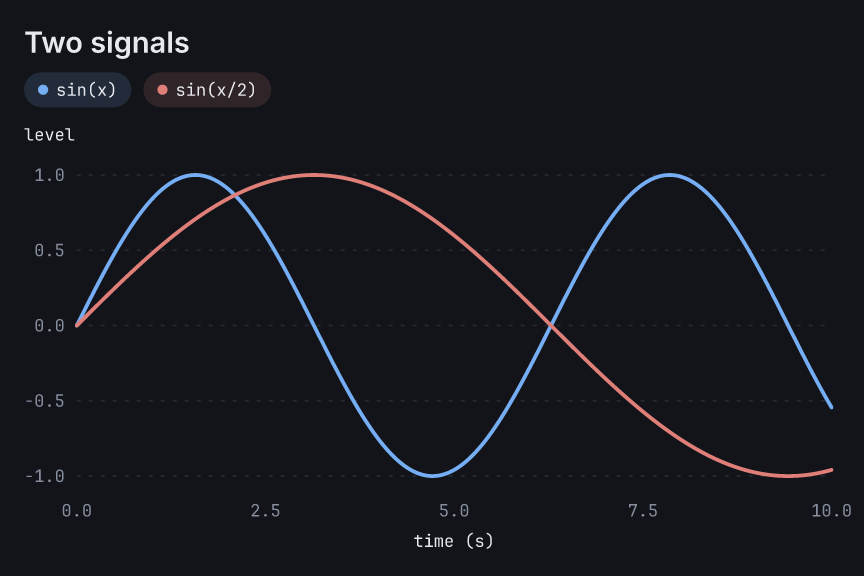
Three themes are built in: Theme.PIGMENT (warm paper, serif titles), Theme.GRAPHITE (neutral, sans-serif) and Theme.MIDNIGHT (dark, monospaced figures). A theme is an immutable value; derive a variant with its with_* methods:
import umber as ub

theme = ub.Theme.MIDNIGHT.with_fill_style(ub.FillStyle.SOLID).with_legend_style(
    ub.LegendStyle.HEADER
)
fig = ub.Figure(theme=theme)
Fonts
Each theme has a title font and a body font. Five fonts are bundled: Font.SOURCE_SERIF_4, Font.IBM_PLEX_SANS, Font.GEIST, Font.INTER and Font.JETBRAINS_MONO. Font.from_file(regular, bold=...) reads TrueType or OpenType files, and Font.system(family) finds an installed family by name:
import umber as ub

serif = ub.Theme.PIGMENT.with_title_font(ub.Font.SOURCE_SERIF_4).with_body_font(ub.Font.INTER)
fig = ub.Figure(theme=serif)

# font = ub.Font.from_file("Brand-Regular.ttf", bold="Brand-Bold.ttf")
# font = ub.Font.system("Helvetica Neue")
Titles and direct legend labels are set in bold. A font without a bold face raises StyleError when such text is drawn, unless it was created with bold_fallback=True, which sets that text in the regular face; umber never synthesizes bold. A font is read once and kept in memory, so the figure does not change if the file does. Characters a font lacks fall back to the bundled fonts, then to system fonts.
Output
fig.save_png(path, dpi=...), fig.save_svg(path) and fig.save_pdf(path) write a file; to_png(), to_svg() and to_pdf() return the bytes or text instead. PNG output is antialiased at the chosen resolution. SVG text is drawn as outlines by default, so it looks the same everywhere; text=ub.SvgText.EDITABLE keeps it as text, which the viewer then draws with its own copy of the font. PDF output is vector, one page at the figure's size, with the fonts it uses embedded as subsets, so its text can be selected and searched; large cell grids stay images, as in SVG.
Jupyter and show()
A figure or axes at the end of a Jupyter cell displays the whole figure as a PNG. Use fig.show() or ax.show() to display it explicitly. Both render at 144 dpi and display at 72 CSS pixels per inch (a 6 × 4 in figure is 432 × 288 CSS pixels). Outside a Jupyter kernel, including terminal IPython, show() opens a PNG in the system's default viewer without waiting for it to close; the file is left in a fresh temporary directory. If no viewer can be started, UsageError names the saved file. Rendering errors propagate, and IPython is optional.
Errors
An error is raised by the call that caused it: umber.DataError for invalid data, umber.StyleError for an invalid option value, umber.UsageError for a call that is not allowed in the current state, and TypeError for a value of the wrong type. The three umber errors derive from umber.UmberError. The traceback points at the argument:
Traceback (most recent call last):
  File "example.py", line 7, in <module>
    ax.line(t, y, label="signal")
    ~~~~~~~^^^^^^^^^^^^^^^^^^^^^^
umber.DataError: Axes.line(): y[2] is inf; values must be finite.
  ax.line(t, y, label="signal")
             ^
hint: use NaN to leave a gap in the line.
TypeError: Axes.line(): color is str; color must be of type Color.
  ax.line([0, 1, 2], [1, 3, 2], color="red")
                                ^^^^^^^^^^^
hint: use Color.hex("#3366B8"), Color.rgb() or a named color such as Color.BLUE.
Errors that depend only on how a figure is set up appear the first time it is drawn; a few depend on the data, such as a value that becomes infinite or a value of 0 on a log axis, and can appear late in a long job. In a training loop or a simulation, record the values and plot them afterwards, or wrap the plotting code in try/except umber.UmberError and log the error, so that a figure that cannot be drawn does not end the job. The errors that only appear when a figure is drawn are listed in the errors reference; rendering a preview early, with the same figure size and label lengths as the final figure, finds them before the job starts.
In a terminal that supports it, the hint and the highlight are shown in color; set NO_COLOR to turn color off or FORCE_COLOR to force it. The same notes appear in Jupyter.
Static typing
The package ships type information (py.typed) and is checked with pyright and mypy in strict mode. Figure().add_axes() is Axes[float, float]; add_axes(x=Scale.category()) is Axes[str, float], add_axes(y=Scale.category()) is Axes[float, str], two category axes are Axes[str, str] and add_axes(x=Scale.time()) is Axes[Time, float]. Methods that only make sense on one kind of axis are typed accordingly:
import umber as ub

ax = ub.Figure().add_axes()
ax.bar(["a", "b"], [1, 2])  # pyright and mypy: bar() needs Axes[str, float]
Performance
End-to-end Python timings next to matplotlib 3.11.2 (Agg, SVG and PDF backends, default style), from the call that builds the figure to the encoded bytes. Figures are 6 × 4 in, PNG at 200 dpi, with the same input data for both. Each value is the median of 8 runs after a warm-up, with each library in its own process. Measured with the umber 0.4.0 source on GitHub Actions ubuntu-latest (AMD EPYC 9V74, 4 vCPUs, Python 3.12, NumPy 2.5) by the Python bench workflow (this run); the script is scripts/bench/python_vs_matplotlib.py. GitHub assigns different CPU models to the same runner label, so absolute times vary between runs; the speed-ups, measured side by side on one machine, are the figures to compare.
| Case | umber | matplotlib | Speed-up |
|---|---|---|---|
| 1,000,000-point line → PNG | 77 ms | 207 ms | 2.7× |
| 1,000,000-point line on a time axis → PNG | 94 ms | 221 ms | 2.4× |
| 1,000,000-point line → SVG | 29 ms | 65 ms | 2.2× |
| 1,000,000-point line → PDF | 36 ms | 164 ms | 4.5× |
| 100,000-point scatter → PNG | 83 ms | 290 ms | 3.5× |
| Histogram of 1,000,000 values → PNG | 32 ms | 63 ms | 2.0× |
| 2-D histogram of 1,000,000 points, 100 × 100 bins → PNG | 97 ms | 168 ms | 1.7× |
| Hexbin of 1,000,000 points, grid size 50 → PNG | 122 ms | 142 ms | 1.2× |
| Heatmap of 1,000 × 1,000 cells → PNG | 189 ms | 253 ms | 1.3× |
| Heatmap of 1,000 × 1,000 cells → SVG | 171 ms | 443 ms | 2.6× |
| Heatmap of 1,000 × 1,000 cells → PDF | 141 ms | 178 ms | 1.3× |
| 4 × 5 grid, one 10,000-point line per panel → PNG | 175 ms | 550 ms | 3.1× |
| 1,000-point line with a second series, title, labels and legend → PNG | 21 ms | 81 ms | 3.9× |
| The same 1,000-point line chart → PDF | 3.6 ms | 128 ms | 36× |
| 5-bar chart → PNG | 12 ms | 44 ms | 3.8× |
import in a fresh interpreter | 70 ms | 309 ms | 4.4× |
Pinned to one CPU, only the scatter plot is notably slower: 124 ms (2.3×). The 4 × 5 grid uses a 12 × 8 in figure. The script's docstring lists where the two libraries do different work, for example the hexbin grids, which are built differently. The PDF heatmap is larger than matplotlib's, 1.45 MB against 0.91 MB: umber computes the exact color of every cell, while matplotlib picks each cell's color from a 256-entry colormap table, which compresses better.
Lines with sorted numeric or time x values are downsampled when they have more than four points per pixel column of the plot (counted at a nominal 300 dpi), keeping the first, last, minimum and maximum point in each column, which is visually lossless. Large scatter plots are composited on up to 8 threads; the output is the same for any number of threads.
Agent Skill
The package includes an Agent Skill for coding agents: a guide to choosing charts and to umber's idioms, a translation table from matplotlib, the error classes and how to fix them, and an API reference generated from the installed version. Install it into a project for one or more agents:
python -m umber skill install --agent claude-code
python -m umber skill install --agent codex --agent cursor --user
--agent is one of claude-code, codex, cursor and pi; without --user the skill goes into the current project, with it into your home directory. python -m umber skill uninstall with the same options removes it. Install it again after upgrading umber, so that the reference matches the installed version.
Rust
The rendering core is published as the umber-core crate and can be used directly from Rust:
use umber_core::{AxisData, Figure, LineOptions, ScaleKind, Theme};

let mut figure = Figure::new(6.0, 4.0, Theme::pigment())?;
figure
    .add_axes(ScaleKind::Linear, ScaleKind::Linear)?
    .title("Signal")
    .line(AxisData::Numbers(vec![0.0, 1.0, 2.0, 3.0]), &[1.0, 3.0, 2.0, 4.0], LineOptions::default())?;
std::fs::write("signal.png", figure.to_png(144)?)?;
How umber is built
umber's code, tests and documentation are written by AI models from Anthropic, OpenAI and Google, and checked by models from Anthropic, OpenAI, Google and Zhipu AI. Its author decides the design and every default, and accepts each release after the tests, type checks and byte-for-byte output checks pass. DESIGN.md explains the design choices, what they cost and how the library is built.
Status
umber is at version 0.x. The API is not yet stable and may change or be removed without a deprecation period. More examples are in examples/. Changes in each version are listed in the release notes.
License
Licensed under either of MIT or Apache-2.0, at your option (MIT OR Apache-2.0). Bundled fonts are under the SIL Open Font License 1.1; see crates/umber-core/fonts/LICENSES and crates/umber-core/fonts/MANIFEST.md. Wheels include statically linked Rust dependencies; their licenses are listed in THIRD-PARTY-LICENSES.txt.